Taking notes on a laptop in college can feel like a superpower—or a disaster—depending on how you do it.
On one hand, you can type faster, search your notes instantly, and keep everything in one place. On the other hand, it’s very easy to end up with messy, unstructured documents… or “ACC 101 Notes FINAL v7 REAL FINAL” scattered across random folders.
In this guide, you’ll learn how to write notes using a laptop in a way that actually helps you understand, remember, and revise your course material—without getting drowned in distractions or digital clutter.
Why Laptop Note-Taking Can Be a Game-Changer in College
Typing your notes isn’t just about speed. Done right, laptop note-taking supports how you study, collaborate, and manage your workload across multiple courses.
Key benefits for college students
- Speed & efficiency: You can capture more information from fast-paced lectures, especially in classes like biology, economics, or law, where content flies.
- Searchability: Instead of flipping through pages, you can search for terms like “midterm review,” “exam tip,” or “essay question” in seconds.
- Easy organization: Digital folders, tags, and cloud storage make it simpler to keep notes for each course, week, and topic.
- Better for group work: Sharing notes or collaborating on a document for group projects becomes effortless.
- Accessibility: You can zoom in on text, adjust fonts, and use tools like spell check or speech-to-text.
Picture this: You’re in a 300-person intro psychology lecture. The professor is moving through the slides quickly, and you’ve got a quiz on Friday. If you have a clear laptop note-taking system, you can capture the key concepts, tag them with “Quiz 1,” and review them later in minutes.
Choosing the Right Setup for Writing Notes on a Laptop
Before you think about methods and apps, you need a setup that’s comfortable, efficient, and realistic for college life.
Laptop positioning and ergonomics
You’ll probably be typing in lecture halls, dorm rooms, libraries, and maybe the campus café. A few tweaks can make a huge difference:
- Sit where you can see and hear clearly. If you rely on slides, being too far back makes it harder to follow.
- Adjust screen brightness and font size. Your eyes shouldn’t feel strained after a 75-minute class.
- Use a desk when possible. Typing on your lap for long stretches can hurt your wrists and posture.
- Learn a few keyboard shortcuts. For example:
- Ctrl/Cmd + B for bold
- Ctrl/Cmd + Shift + 8 or similar for bullet points
- Ctrl/Cmd + F to search within your notes
These small details make your note-taking more fluid, especially when you’re trying to keep up with a fast lecturer.
Choosing the right note-taking app
The “best” app is the one you’ll actually use consistently.
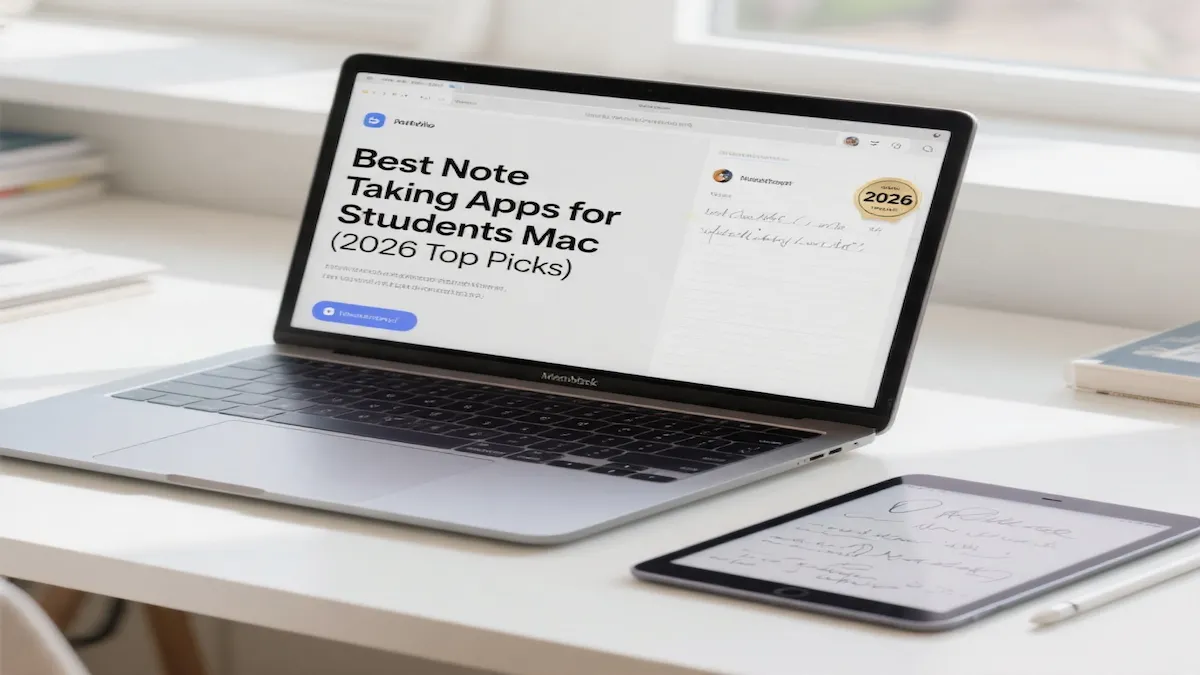
If you’re using a Mac, here are the best note-taking apps for students on Mac to help you study smarter, not harder.
A few popular categories:
- Word processor style: Google Docs, Microsoft Word
- Great for linear lecture notes, essay planning, and group collaboration.
- Notebook style: OneNote, Notion, Apple Notes
- Good for organizing notes by course, topic, and semester.
- PDF + annotation: GoodNotes (if you sometimes use a tablet), Acrobat Reader
- Helpful if professors share slides or article PDFs.
For most students in the U.S., a simple setup like Google Docs + a well-organized Google Drive folder structure is plenty powerful and free.
How to Write Notes Using a Laptop During Lectures
Let’s get practical. Here’s how to write notes using a laptop so that you’re not just transcribing, but actually learning.
Step 1: Prepare before class
Five minutes of prep can dramatically improve your notes:
- Create a document before class starts with a clear title, e.g.,
- BIO 101 – Week 3 – Cell Membranes – Sept 15
- Add a simple outline at the top, based on the syllabus or last lecture:
- Announcements
- Review of last class
- New topic(s)
- Examples/case studies
- Exam hints / key formulas
- Skim the assigned reading or slides. You don’t need to read every word, but knowing the main headings helps you anticipate what matters.
In real life: Imagine you’re heading into an 8:00 a.m. chemistry lecture. Instead of opening a blank document at 8:02, you arrive, open your “CHEM 101 – Lecture 5” doc, and already have space for “Key Reactions” and “Lab Tips.” You’re mentally in gear before the professor speaks.
Step 2: Focus on structure, not every word
One of the biggest mistakes laptop note-takers make is trying to type everything.
For more pitfalls to avoid, see the 6 most common mistakes in note-taking (and how to fix them).
Instead, aim to capture:
- Main ideas and section headings
- Definitions and key terms
- Examples the professor spends time on
- Anything they repeat, emphasize, or say, “this will be on the exam.”
- Diagrams or processes (summarized in words if you can’t draw easily)
Use headings and bullets as you go:
- Use H2 or H3 headings, or bold text, for major topics.
- Use bullet points for lists, examples, or step-by-step processes.
- Use italics for emphasis or your own questions, e.g., Ask the TA about this for the exam.
This structure makes your notes easier to review later and turns them into a study tool rather than just a transcript.
Step 3: Add your own thoughts in real time
Typed notes can become passive if you’re just copying. To avoid that:
- Insert short comments like:
- “This connects to last week’s experiment.”
- “Possible essay question: impact of social media algorithms.”
- Use a simple tag system:
- ?? for questions you still have
- ** for likely exam topics
- ! for important examples or case studies
These active learning habits turn your note-taking session into part of your studying, rather than something separate you “do later.”
Note-Taking Methods That Work Especially Well on a Laptop
Some classic note-taking methods actually translate very well to digital formats.
The outline method (perfect for fast lectures)
This is ideal for content-heavy classes like history, sociology, or business.
Example structure:
- I. Main topic
- A. Subtopic
- Example
- Explanation
- B. Subtopic
On a laptop, you can:
- Use bullets and indentation to show levels.
- Collapse sections (in some apps) when reviewing.
- Quickly move points around if the professor jumps between ideas.
Real-life example: In an American History survey course, you might have:
- I. Causes of the Civil War
- A. Economic factors
- Industrial North vs agricultural South
- B. Political tensions
- C. Social/cultural divisions
When you revise, you’ll immediately see how the lecture was organized.
Digital Cornell notes
The Cornell method divides your page into three parts: cues, notes, and summary. On a laptop, you can replicate this by using a simple table or bolded sections.
For each lecture, format your document like:
- Main Notes (right side / main area): lecture content, bullets, examples
- Cue Column (left side or at the top/bottom): key terms, questions, prompts
- Summary (end of document): 3–5 sentences explaining what the lecture was about
After class, take 5–10 minutes to fill out the cue column and summary. This habit forces you to process and rephrase what you heard, which is crucial for memory.
Annotating slides or readings
If your professor provides slides:
- Download the slides and open them in a PDF reader or note-taking app.
- Type brief notes under each slide instead of rewriting the whole slide.
- Add your own examples, definitions, or clarifications next to the original content.
This is especially useful in STEM courses where diagrams or formulas are already on the slides.
Staying Organized: Folders, File Names, and Backups
Great notes are useless if you can’t find them.
Create a simple, consistent folder system.
For example, in Google Drive or OneDrive:
- /Fall 2025
- /BIO 101
- /ENG 102
- /PSY 201
Inside each course, create:
- /Lectures
- /Assignments
- /Readings
- /Exam Review
Keep your file names predictable:
- Course – Topic – Date
- Example: PSY 201 – Memory & Learning – Oct 3
Future you, panicking before midterms, will be very grateful.
Back up your notes automatically.
At minimum:
- Use a cloud-based app (Google Docs, OneDrive, iCloud), so notes sync between devices.
- Occasionally export important notes as PDFs for “just in case” scenarios (e.g., laptop dies before finals).
Think of your notes as your academic data. Back them up like they’re worth your tuition—because they kind of are.
Avoiding Distractions While Taking Notes on a Laptop
Let’s be honest: the same device you’re using for notes is also your portal to Instagram, TikTok, Discord, and everything else.
Here’s how to stay focused:
- Use full-screen mode on your note-taking app during lectures.
- Turn off non-essential notifications during class time.
- Close extra tabs that aren’t related to the course.
- If your attention tends to wander, try a website blocker during lecture hours.
Real-life scenario: You’re in a statistics lecture, you open one “quick” notification, and suddenly you’ve missed the entire explanation of regression. Building discipline with your laptop now saves you hours of confusion later.
Turning Laptop Notes Into Powerful Study Material
Good laptop notes are only step one. Step two is how you use them.
After-class review (10–15 minutes)
If you want a clear routine you can follow every week, use this step-by-step guide on how to review your notes effectively after class and before exams.
Within 24 hours:
- Re-read your notes and clean up any typos or half-finished sentences.
- Highlight or bold key terms, formulas, or definitions.
- Add a summary paragraph at the bottom:
- “In this lecture, we covered…”
This small investment significantly boosts your understanding and long-term memory.
Creating study guides from your notes
Before quizzes and exams:
- Copy key points from several lectures into a separate study guide document.
- Group information by topic or learning objective, not just date.
- Turn headings into questions, e.g.,
- “What are the main functions of the cell membrane?”
- “How does classical conditioning differ from operant conditioning?”
This transforms your digital notes into an active study tool.
Key Takeaways
- Laptop note-taking is powerful when you focus on structure, not just speed.
- A simple setup—good seating, a reliable app, and clear file organization—prevents chaos later in the semester.
- Use methods like the outline format or digital Cornell notes to make your notes more readable and memorable.
- Reduce distractions by limiting notifications, closing unnecessary tabs, and keeping the window in full-screen mode.
- Review and refine your notes within 24 hours, then turn them into targeted study guides before exams.
FAQ: How to Write Notes Using a Laptop in College
1. Is it better to take notes on paper or on a laptop?
Neither is universally better—it depends on how you use them. Handwriting can help some students remember better, but laptops allow faster, more organized notes. If you’re typing, focus on summarizing and processing ideas instead of transcribing everything word-for-word.
2. How can I type fast enough to keep up with lectures?
Practice basic touch typing and common keyboard shortcuts. You don’t need to capture every word—aim to write down key terms, definitions, examples, and anything the professor emphasizes. Use abbreviations and expand your notes after class when you review.
3. What’s the best app to take notes on a laptop for college?
There’s no single “best” app, but many U.S. students do well with Google Docs, Microsoft OneNote, or Notion. Choose one that syncs across devices, lets you organize notes by course, and feels simple enough that you’ll actually stick with it.
4. How should I organize laptop notes for multiple classes?
Create a main folder for the semester (e.g., “Fall 2025”) and subfolders for each course. Inside each course folder, have separate folders for lectures, assignments, and exam reviews. Use consistent file names like Course – Topic – Date so you can find things fast.
5. How do I avoid getting distracted on my laptop during class?
Go full-screen with your notes, silence notifications, and close any unrelated apps or tabs. If you still struggle, try a website blocker during lecture time or sit near the front of the room—it’s much harder to scroll social media when you know the professor can see your screen.
6. Can I still learn effectively if I take all my notes on a laptop?
Yes—if you’re active with your notes. That means summarizing in your own words, reviewing within 24 hours, and turning notes into study guides. The effectiveness comes from what you do with your notes, not whether they’re typed or handwritten.
Conclusion: Making Laptop Notes Work for You
Learning how to write notes using a laptop in college is really about building a system that supports your learning, not just your typing speed.
If you want to zoom out and see how this fits into all your classes, read this guide on how to take notes in university using a simple system that works across most majors.
When you choose a simple setup, use structured methods like outlines or Cornell notes, stay focused during lectures, and review your notes regularly, your laptop becomes one of your most powerful academic tools—not just another distraction in your backpack.