
If you’re a university student, your Windows laptop is where most real studying happens—PDFs, slides, assignments, and research tabs. And in the middle of all that, your notes can easily get lost.
- What Students Need from the Best Note-Taking App for Windows
- Why OneNote Is the Best Note-Taking App for Windows for University Students
- Pros and Cons of Using OneNote as a Student
- Other Good Note Taking Apps for Windows (Student Alternatives)
- Comparison Table: Best Note-Taking Apps for Windows for Students
- How to Set Up OneNote on Windows for Your University Life
- FAQ: Best Note Taking App for Windows for University Students
- Final Advice: Which Note-Taking App for Windows Should You Choose?
Choosing the best note-taking app for students on Windows can be the difference between “Where did I save that?” and “Oh, here it is—organized and ready for revision.”
Once you pick an app, the real win is using it inside a simple workflow (so your notes don’t turn into random pages). Start here: [The University Note-Taking System].
In this guide, you’ll see what students actually need from a Windows note-taking app, why Microsoft OneNote is usually the best place to start, the best alternatives, a quick comparison table, and an easy setup you can copy.
If you also use a MacBook, you’ll like this too: [Best Note-Taking Apps for Mac].
What Students Need from the Best Note-Taking App for Windows

Before picking apps, think about your real life as a university student.
A good note-taking app for Windows should help you:
- Take quick, clear notes during lectures or online classes.
- Keep notes, slides, images, and PDFs together in one place.
- Organize everything by course, topic, and week.
- Sync with your phone or tablet for on-the-go study.
- Stay free or cheap on a student budget.
With all that in mind, Microsoft OneNote usually stands out as the best note-taking app for Windows for university students.
Why OneNote Is the Best Note-Taking App for Windows for University Students
Microsoft OneNote feels like a digital binder system, which fits perfectly with how uni courses are structured.
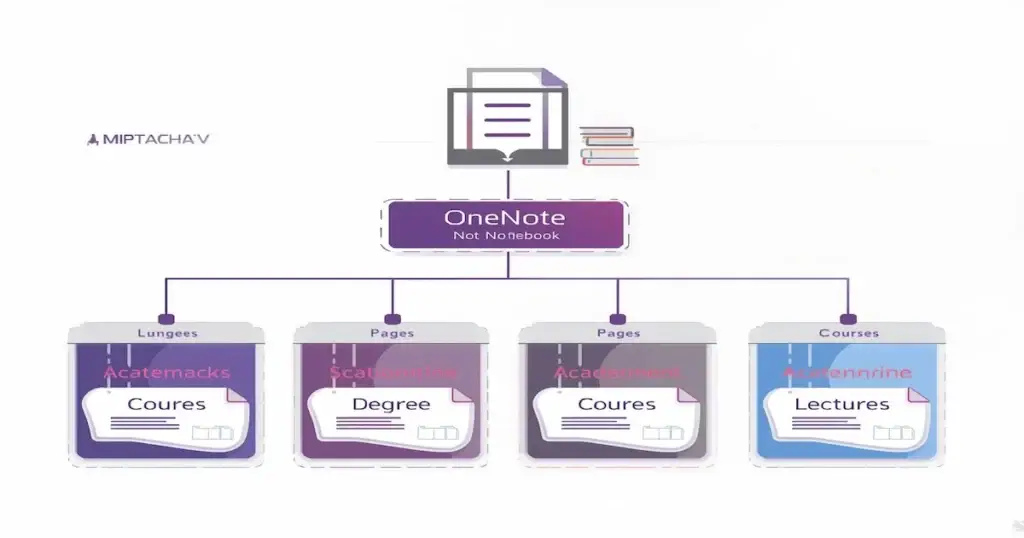
Notebook, Section, Page = Degree, Course, Lecture
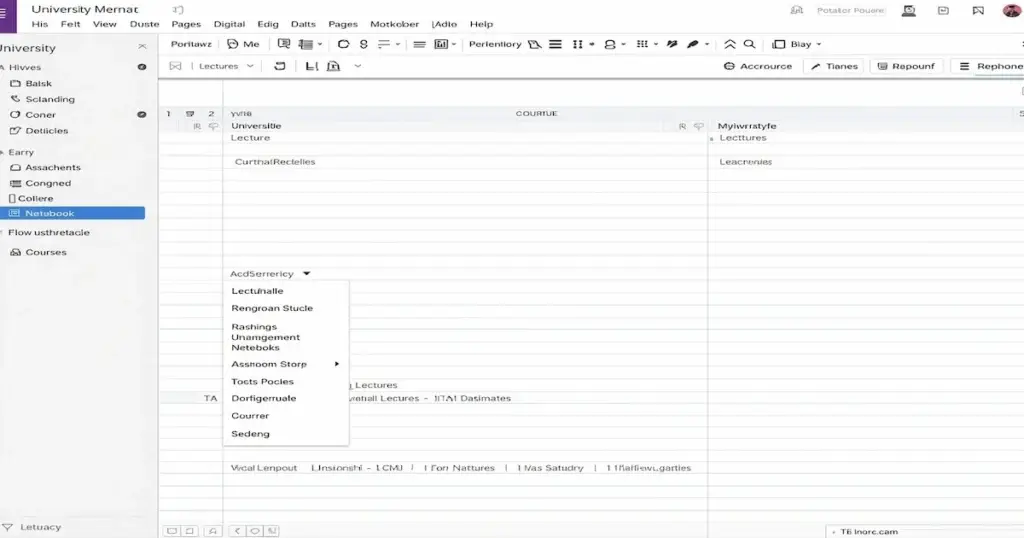
OneNote organizes your notes like this:
- Notebooks → big containers (e.g., “Year 1”, “Semester 2”).
- Sections → individual courses (e.g., “Biology 101”, “Economics”).
- Pages → single lectures or topics (e.g., “Week 5 – Demand & Supply”).
That structure makes OneNote a very natural note-taking app for Windows for students who juggle several subjects at once.
Freeform Canvas for Rich Lecture Notes
Each page in OneNote is a free canvas, not just a plain text box.
You can:
- Type headings, bullet points, and formulas.
- Insert screenshots and lecture slides.
- Draw diagrams with a stylus or mouse.
- Add little “boxes” of text anywhere on the page.
This makes OneNote more flexible than a basic text editor and more student-friendly than writing everything in long documents.
A Note-Taking App That Follows You
OneNote isn’t just a Windows note-taking app; it also runs on:
- Web
- Android
- iOS
- Other desktop platforms
“If you mainly revise on iOS, check this guide on the best note-taking app for iPhone for university students.”
So you can take notes on your Windows laptop in class, then review them on your phone on the bus home. For university students, this cross-device flexibility is a significant reason why OneNote is often called the best note-taking app for Windows.
Pros and Cons of Using OneNote as a Student
Let’s be realistic and look at both sides.
Advantages of OneNote for Students
- Free to use – you only need a Microsoft account.
- Excellent organization – notebooks, sections, and pages fit degrees, courses, and lectures.
- Rich notes – text, images, drawings, audio, files, and links all in one place.
- Cross-platform – use the same notes on Windows, mobile, and web.
- Ideal for long degrees – easy to build a multi-year study archive.
Disadvantages of OneNote for Students
- Interface can feel “busy” – lots of buttons and options at first.
- A bit heavy for simple lists – if you only need tiny to-dos, it may be more than you need.
- Occasional sync hiccups – like any cloud app, sometimes sync can lag a little between devices.
Even with these cons, OneNote is still an excellent pick as the best note-taking app for Windows for university students, thanks to what it offers for free.
Other Good Note Taking Apps for Windows (Student Alternatives)
Not every student has the same style. Here are some alternative note-taking apps for Windows, along with who they’re best for.
Notion – For Planner and Organizational Nerds
Notion is more than a note-taking app; it’s a whole workspace.
Good for you if you:
- Love building dashboards and organized systems.
- Want course pages, reading lists, assignment trackers, and calendars in one place.
- Don’t mind spending time setting things up.
Notion is fantastic for planning and projects, but it can feel heavy or slow on some devices and more complex than needed for simple lecture notes.
Obsidian – For Deep Thinkers and Note Linking
Obsidian is excellent if you like connecting ideas across courses.
You might like it if you:
- Enjoy the concept of a “second brain.”
- Prefer local files and Markdown.
- Want to link notes between topics and see a graph of ideas.
It’s powerful for research and long-term knowledge, but it can feel technical and overwhelming for beginners.
Joplin – For Privacy Fans
Joplin is an open-source, privacy-friendly note-taking app for Windows.
It fits you if you:
- Care a lot about data control and open-source tools.
- Like Markdown and simple, structured text.
- Don’t need fancy layouts but want reliability and sync.
The downside is a more basic interface and fewer “polished” features than OneNote or Notion.
Simplenote – For Minimalists
Simplenote is all about fast, distraction-free text.
Choose it if you:
- I want to type quick notes and lists.
- Like minimal design and zero clutter.
- Don’t need to store lots of images, PDFs, or slides.
Suppose your degree involves many diagrams, images, and PDFs. In that case, Simplenote may feel too limited as your main note-taking app for Windows.
Comparison Table: Best Note-Taking Apps for Windows for Students
Here’s a quick comparison to help you pick the best tool for your study style:
| App | Best For | Strengths | Drawbacks |
|---|---|---|---|
| OneNote | Most university students | Free, rich media, notebook structure, cross-platform | Interface can feel cluttered; a bit heavy for simple notes |
| Notion | Planners & project-oriented students | Custom dashboards, databases, all-in-one workspace | Learning curve, can feel slow/overkill |
| Obsidian | Deep thinkers & research-heavy students | Local files, backlinks, graph view, powerful plugins | Technical feel, more setup required |
| Joplin | Privacy-focused, open-source lovers | Open-source, encrypted sync, Markdown | Less polished UI, weaker collaboration |
| Simplenote | Minimalists & quick-note takers | Very light, fast, distraction-free | Poor for images/PDFs and complex lecture material |
If you’re unsure, start with OneNote and only move to other apps if you discover specific needs.
How to Set Up OneNote on Windows for Your University Life
Here’s a simple, practical way to use OneNote as your main note-taking app for Windows this semester.
1. Create a “University” Notebook
Open OneNote and:
- Create a notebook called “University – 2025/2026” (or your current year).
- Add a section for each course, for example:
- “Biology 101”
- “Modern History”
- “Data Structures”
Now each course has a home in your Windows note-taking app.
2. Create a Page for Each Lecture
For every class, create a new page in the right section:
- Use the date and topic, e.g., “Oct 3 – Enzymes & Metabolism”.
- Add headings for each subtopic.
- Type bullet points and key definitions.
- Insert screenshots or slides straight into the page.
This keeps all your lecture content together, rather than splitting it across random folders.
3. Summarize After Class
After the lecture (or that evening):
- Add a short “Summary” section at the bottom of the page.
- Write 3–5 sentences: What was this lecture actually about?
- Highlight anything that sounds like an exam hint.
This tiny habit upgrades your notes from “raw” to “ready for revision.”
4. Use Search Before Exams
One of the best parts of using OneNote as your main note-taking app for Windows is search.
Before exams, you can:
- Search for keywords like “mitosis”, “regression”, or “Keynes”.
- Quickly open all pages where that topic appears.
- Copy the most important parts into a special “Exam Revision” section.
You’ll spend less time hunting and more time actually studying.
FAQ: Best Note Taking App for Windows for University Students
Q1: Do I have to use OneNote, or can I mix apps?
You can totally mix apps. Many students use OneNote as their main Windows note-taking app and keep Notion for planning, or Simplenote for quick ideas. Just make sure one app is your main home for lecture notes so you don’t lose things.
Q2: Is OneNote really free for students?
Yes, OneNote itself is free. You only need a Microsoft account. Some extra storage or Office features might be paid, but basic note-taking works excellently on the free plan.
Q3: Is Notion better than OneNote for students?
Notion is better if you want a complete system for tasks, calendars, and projects. OneNote is usually better if your primary focus is lecture notes on Windows with images, PDFs, and handwritten diagrams.
Q4: Can I access my Windows notes on my phone?
Yes. OneNote, Notion, Obsidian (with sync), Joplin, and Simplenote all have mobile apps. If cross-device sync matters, check that feature when choosing your note-taking app for Windows.
If your phone is Android, this honest guide on the best note-taking app for Android for university students will help you choose.”
Final Advice: Which Note-Taking App for Windows Should You Choose?
If you’re a university student and still wondering which is the best note-taking app for Windows, here’s the simple version:
- Start with OneNote – it’s free, powerful, flexible, and designed for heavy note-taking.
- Use it for at least one whole week of lectures as your main Windows note-taking app.
- If you feel organized and calm, keep going.
- If you discover specific needs (more planning, more privacy, more minimalism), then try Notion, Obsidian, Joplin, or Simplenote as well.
The important thing isn’t finding the “perfect” app—it’s actually using your note-taking app for Windows consistently so future-you, during exam week, can say:
“Wow, thank you, past me. These notes are actually usable.” 😄
[pps_post_list_box layout=”pps_post_list_box_3840″]