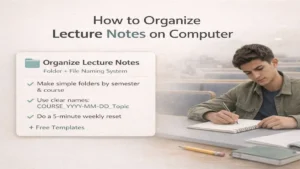
If you’ve ever searched “final review sheet” at 1:12 a.m. and opened seven random files before finding the right one, you’re not disorganized—you’re using a system that can’t scale.
Here’s how to organize lecture notes on computer in a simple, repeatable way that stays clean through midterms, labs, group projects, and weeks when you’re working extra shifts. This works on Windows (File Explorer) and Mac (Finder)—and it doesn’t require a fancy app.
Definition (snippet-ready):
A sound digital lecture-note system is a consistent folder structure and a simple file-naming convention that make every note searchable by class, date, and topic—without relying on memory.
Action: Open Finder/File Explorer and create a folder called College (or School). We’ll build from there.
Quick Start (10 minutes)
If you only have 10 minutes, do this:
Create this path:
College → 2026_Spring → (Course folders)
Inside each course folder, create:
Inbox, Lecture Notes, Slides, Assignments, Exams(add Lab/Readings if needed)
Rename your next three files using:
COURSE_YYYY-MM-DD_Type_Topic
Pin/star the 2026_Spring folder so it’s always visible.
Action: Do steps 1–3 now—even if you don’t have time to clean old files yet.
The 3-Part System
Most students try to fix the organization by making more folders. The real win is consistency.
This system has three parts:
A semester folder tree that matches how school works
A file-naming formula that sorts itself automatically
A weekly 5-minute reset so clutter doesn’t rebuild
Action: Choose one “source of truth” (laptop + cloud sync). One clean home beats three half-synced locations.
How to organize lecture notes on computer (Folder + File Names + Weekly Reset)
This is the method you’ll use every semester: quick to set up, hard to break, and easy to search during exam revision.
Step 1: Build a semester folder tree (10 minutes)
Use a structure that answers: When? What class? What kind of file?
Recommended folder tree:
College
2026_Spring
BIO101
Inbox
Lecture Notes
Lab
Slides
Assignments
Exams
PSY210
Inbox
Lecture Notes
Readings
Slides
Assignments
Exams
Keep it boring on purpose. Your brain should spend energy on studying—not hunting.
Action: Create only the top levels today (College → 2026_Spring → Course folders). Add subfolders as you need them.
Step 2: Use a file-naming formula you can’t mess up
Your file name should tell you what it is without opening it.
File name formula:
COURSE_YYYY-MM-DD_Type_Topic
Examples:
BIO101_2026-02-03_Lec_CellMembranes
PSY210_2026-03-10_Lec_ClassicalConditioning
CHEM120_2026-04-01_Lab_TitrationPrep
Why this works:
The date sorts correctly (no more “Lecture 3” confusion).
The type is evident at a glance (Lec/Lab/Slides/Review).
The topic makes searching fast during finals week.
Action: Make a text shortcut/clipboard snippet with the formula so you don’t “wing it” when you’re tired.
Step 3: Add a light weekly maintenance routine (5 minutes)
The goal isn’t perfection. It’s findable when you’re stressed.
Pick one day (Sunday night works for many students) and do this:
Move new files into the correct course folder (or into the Inbox first)
Action: Save the folder template as a text file inside College so you can reuse it next term.
Key takeaways
Organize folders by semester → course → file type
Use COURSE_YYYY-MM-DD_Type_Topic so sorting is automatic
Keep an Inbox folder to prevent chaos on busy weeks
Do a 5-minute weekly reset
Use placeholders when you miss class so your study plan survives
Aim for findable, not perfect
FAQ
What’s the best way to name lecture note files?
Use a consistent formula with course, date, type, and topic. The date keeps order; the topic makes searching easy.
Should I organize notes by week or by topic?
Keep folders by course + file type, then put the topic in the filename. Topic-only folders usually explode mid-semester.
Where should I store lecture slides and notes—together or separate?
Separate subfolders (Slides + Lecture Notes). Link them with the same date/topic in filenames.
What if professors post multiple versions of slides?
Add a version tag:
PSY210_2026-02-12_Slides_MemoryModels_v2
How do I keep the system from falling apart during midterms?
Use the Inbox + weekly reset. When you’re slammed, only sort what affects grades first.
Conclusion
Once you set up a semester-based folder tree and a simple naming formula, you stop “re-organizing” and start studying. Try the Quick Start today, run the 5-minute reset weekly, and your notes will stay searchable—even when life gets hectic—precisely what you want when you’re figuring out how to organize lecture notes on computer.