Apple Notes Review for Students: Is It Good for College?
September 25, 2026 / By
mind life up / 19 minutes of reading
If you have spent any time looking up study routines online, you have probably seen the elaborate setups: complex Notion dashboards with aesthetic widgets, color-coded digital planners, and multi-layered workspace templates. When you arrive at college or step into a rigorous high school, university, or graduate program, it is easy to convince yourself that academic success requires an equally complicated software setup.
During my freshman year, I fell directly into that trap. I spent dozens of hours designing automated databases and tweaking custom templates, only to realize halfway through midterm season that I was spending more time managing my software than actually reviewing lecture material.
That realization eventually leads many learners back to the simple, pre-installed app sitting on their devices. But is Apple Notes good for students when academic expectations climb? Can a default utility handle heavy coursework, research papers, and fast-paced lectures?
In this comprehensive Apple Notes review for students, we will take an honest, practical look at how the app performs under real academic pressure. From high school classrooms to seminar halls and graduate research labs, here is how Apple Notes for students holds up, where it genuinely excels, and where it reaches its limits.
Quick Verdict
For anyone already working inside the Apple ecosystem, this Apple Notes review for students comes down to a clear verdict: Apple Notes has evolved from a basic digital notepad into one of the most reliable, zero-friction academic tools available.
By adding collapsible headings, native audio recording with live transcripts, Apple Pencil handwriting refinement, and inline Math Notes, Apple Notes for college students handles roughly 85% to 90% of everyday academic demands without costing a penny.
┌─────────────────────────────────────────────────────────────┐
│                   APPLE NOTES AT A GLANCE                   │
├────────────────────────────┬────────────────────────────────┤
│ Target Audience            │ High school, college, grad,    │
│                            │ and university students        │
├────────────────────────────┼────────────────────────────────┤
│ Usability & Startup Speed  │ 5.0 / 5.0                      │
│ Handwriting (Apple Pencil) │ 4.5 / 5.0                      │
│ Lecture Capture & Audio    │ 4.5 / 5.0                      │
│ Cross-Device iCloud Sync   │ 5.0 / 5.0                      │
│ Advanced Organization      │ 3.8 / 5.0                      │
│ Cross-Platform Support     │ 2.0 / 5.0                      │
├────────────────────────────┼────────────────────────────────┤
│ Overall Academic Score     │ 4.5 / 5.0                      │
└────────────────────────────┴────────────────────────────────┤
│ Verdict: Fast, distraction-free, and dependable. One of     │
│ the best note taking app for Apple users who want to study  │
│ immediately rather than waste time building complex systems.│
└─────────────────────────────────────────────────────────────┘
If your priority is opening a note instantly, capturing lectures, and having your study guides sync across your Mac, iPad, and iPhone with zero fuss, Apple Notes for students is exceptional. However, if you rely on a Windows PC at your dorm desk or require relational databases, you will want to look at alternative platforms.
3. What Is Apple Notes?
Apple Notes is Apple’s native, cloud-synchronized writing application. Pre-installed across macOS, iPadOS, and iOS—and accessible through iCloud on the web—it serves as the baseline writing space for Apple hardware.
For years, students treated Apple Notes as little more than a scratchpad for grocery lists and quick reminders. Today, the platform has matured significantly. Modern versions offer:
Structured text formatting: Title, Heading, Subheading, Monospaced text, bulleted lists, and five distinct color highlights.
Apple Pencil intelligence: Deep stylus support, custom pen tools, shape recognition, and Smart Script handwriting smoothing.
Calculations: Real-time equation solving and variable evaluation through Math Notes.
Interconnected structure: Inline note linking (>>) to build personal course wikis.
For anyone pursuing Apple Notes for university work, it provides a surprisingly capable foundation that eliminates the need for expensive third-party tools.
4. Why Students Might Like Apple Notes
The primary advantage highlighted in this Apple Notes review for students is simplicity. When exam dates approach and reading loads multiply, software friction is the last thing you need. Apple Notes for students stands out in everyday study routines for several distinct reasons:
Instant, Zero-Lag Launch: Many third-party note apps take seconds to boot up, verify licenses, or sync heavy local caches. Apple Notes launches instantly. When an instructor begins speaking without warning, you can start capturing notes in seconds.
Minimalist, Distraction-Free Workspace: There are no plugin directories to troubleshoot, no theme stores to browse, and no endless layout settings. The screen presents a clean page, allowing you to focus entirely on learning.
No Paid Subscriptions: You never have to worry about hitting an artificial paywall right before finals. Every native feature is unlocked from day one.
Optimized Battery Life: Because Apple Notes is built directly into Apple’s operating systems, it uses far fewer background resources than heavy, browser-based Electron apps. Your MacBook or iPad can easily last through a full day of back-to-back classes.
Instant Screen-Corner Capture: On a Mac, the Globe + Q shortcut brings up a Quick Note without switching away from your browser or PDF reader. On an iPad, simply tapping your Apple Pencil on the lock screen opens a fresh note immediately.
5. Key Features for Students
When evaluating Apple Notes for college students, functionality goes well beyond typing plain paragraphs. Several built-in tools are tailored directly to academic workflows:
┌────────────────────────────────────────────────────────────────────────┐
│                      KEY FEATURES FOR ACADEMICS                        │
├─────────────────────────────┬──────────────────────────────────────────┤
│ Feature                     │ Campus & Lecture Application             │
├─────────────────────────────┼──────────────────────────────────────────┤
│ Live Audio Transcripts      │ Record lectures while generating text    │
│ Math Notes                  │ Auto-solve typed/handwritten equations   │
│ Collapsible Headings        │ Hide answers for active-recall study     │
│ Smart Script                │ Cleans and refines hurried handwriting   │
│ Note Linking (>>)           │ Interlink lecture summaries and wikis    │
│ Document Scanner & OCR      │ Digitize handouts and search whiteboards │
└─────────────────────────────┴──────────────────────────────────────────┘
Audio Recording and Live Transcription
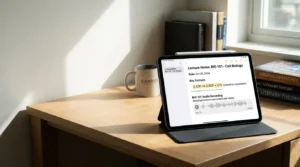
A standout feature for lecture halls is the built-in audio recorder with live speech-to-text transcription. You can start recording inside a note while continuing to type summary points or sketch diagrams on the same page.
The app generates a synchronized text transcript in real time. If a professor speaks rapidly through a critical concept, you do not need to panic about missing a word; you can tap that exact section of the transcript later to listen back to the audio. System intelligence tools can also generate quick summaries of long recordings.
Math Notes and Inline Calculations
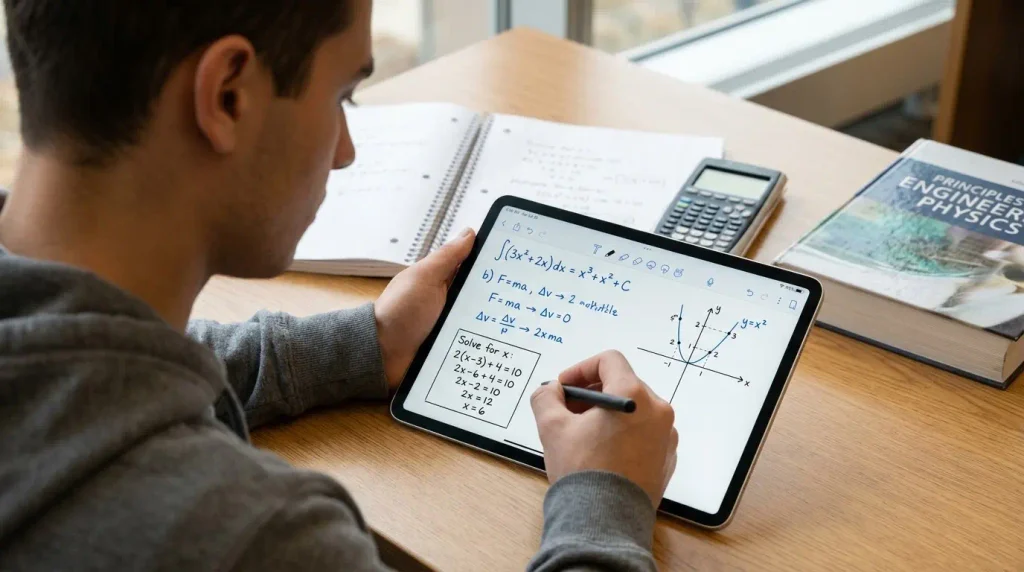
For STEM students, Math Notes is one of the most useful additions to the app. You can type or handwrite mathematical equations followed by an equals sign (=), and Notes evaluates the result automatically.
If you define variables (such as a = 15 and b = 30), you can write formulas using those variables, and the app calculates the answer. Change the initial variable upstream, and every dependent calculation updates across your note. You can even generate interactive graphs straight from written equations.
Smart Script and Apple Pencil Integration
Taking handwritten notes on an iPad often becomes untidy during rapid lectures. Smart Script uses on-device machine learning to smooth out your handwriting while preserving your natural personal style.
It also adds flexible digital editing to handwritten text: you can scratch out words to delete them, drag sentences to insert blank lines, and paste typed text directly onto the page in your own handwriting style.
Collapsible Headings and Color Highlighting
Dense, endless pages of text make studying difficult. Apple Notes allows you to collapse any section under a Heading or Subheading. Tapping the downward chevron tucks away paragraphs and supporting details, transforming long lecture records into structured outlines.
Pair this with five soft highlight shades (purple, pink, orange, mint, and blue), and you can build clear visual hierarchies across your readings.
Note Linking (>>)
By typing >> or using Cmd + K, you can link directly to any other entry in your library. This bi-directional linking enables you to build a structured course wiki. You can link your weekly reading summaries back to your master course syllabus, or connect concepts from earlier lectures directly into upcoming exam review notes.
Document Scanning with OCR Search
Using your iPhone or iPad camera, you can scan printed handouts, lab instructions, or syllabus pages straight into a note as clean, straightened PDFs.
Furthermore, Apple’s system-level Optical Character Recognition (OCR) indexes text inside images, scanned handouts, and handwritten scribbles. If you snap a quick photo of a whiteboard diagram, you can search for words written on that board weeks later using the standard search bar.
6. Using Apple Notes Before, During, and After Class
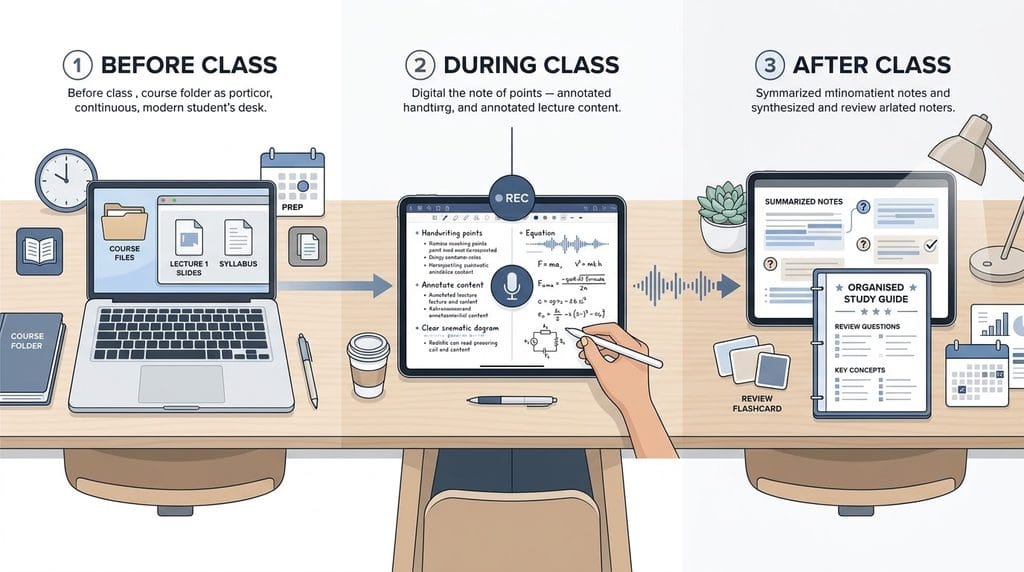
Developing an efficient Apple Notes student workflow means treating your notes as a three-phase learning loop rather than an isolated typing session.
┌────────────────────────────────────────────────────────────────────────┐
│                   THE THREE-PHASE LECTURE WORKFLOW                     │
├────────────────────┬────────────────────┬──────────────────────────────┤
│ 1. BEFORE CLASS    │ 2. DURING CLASS    │ 3. AFTER CLASS               │
├────────────────────┼────────────────────┼──────────────────────────────┤
│ • Import PDF slides│ • Record audio     │ • Review transcript          │
│ • Link syllabus    │ • Type core ideas  │ • Collapse subtopics         │
│ • Pre-read outlines│ • Apple Pencil math│ • Highlight core terms       │
│ • Tag course code  │ • Snap board photo │ • Link related lectures      │
└────────────────────┴────────────────────┴──────────────────────────────┘
Before Class: Preparation and Ingestion
Open your course folder and create a new note following a consistent naming pattern, such as CHEM 101 - Lecture 06 - Thermodynamics.
If your professor uploads lecture slides beforehand, download the PDF and drag it directly into the note. At the top of your page, insert a link back to your course overview using >> Syllabus. Spending five minutes skimming the previous lecture’s notes primes your memory for the new topic. Incorporating established Note-Taking Methods, like the Cornell structure or an outline format, will give your empty page clear direction before the lecture begins.
During Class: Capture and Focus
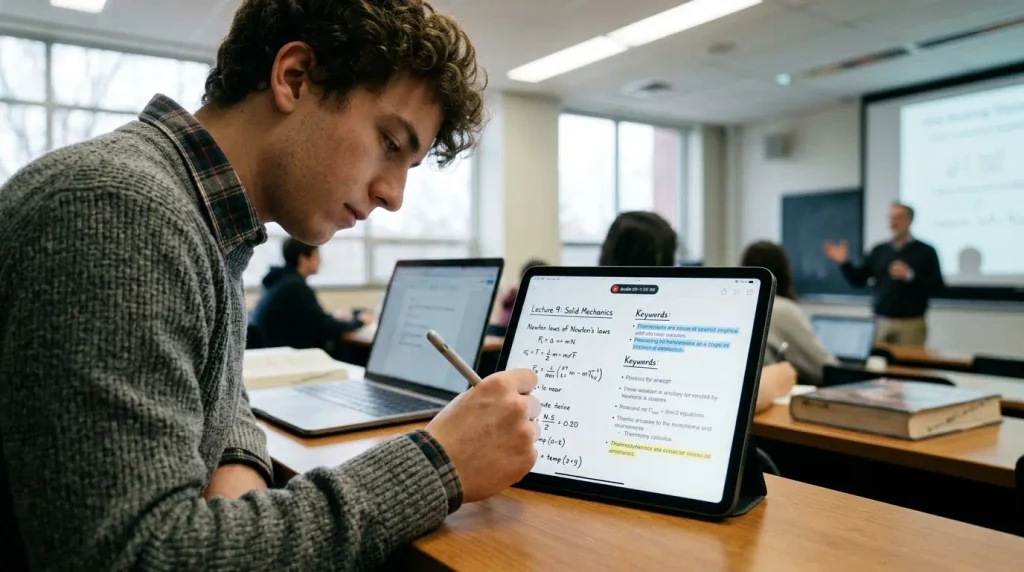
When the session starts, tap the attachment icon to begin recording audio. When using Apple Notes for taking lecture notes, focus on understanding rather than verbatim transcription:
Type core concepts, definitions, and questions in clean bullet points.
Insert quick checkboxes (Cmd + Shift + L) for tasks or readings mentioned by the instructor.
On an iPad, run Notes side-by-side with your textbook in Split View, using your Apple Pencil to sketch diagrams or write out equations.
When a lecturer presents a complex visual slide or physical model, use Continuity Camera to snap a photo with your iPhone, placing it directly into your Mac or iPad note.
After Class: Processing and Synthesis
The most critical part of an Apple Notes student workflow happens within 24 hours of class. Reopen your raw capture and spend ten to fifteen minutes refining it:
Turn your major topics into Collapsible Headings to create natural review sections.
Check your typed notes against the audio transcript to fill in any gaps.
Apply color-coded highlighting to key terms, primary formulas, and exam hints.
Add relevant search tags at the bottom (e.g., #lecture, #quiz2, #exam1).
7. Using Apple Notes for Exam Review
Preparing for midterms and finals requires active study strategies. Relying on passive re-reading often creates a false sense of mastery. Fortunately, Apple Notes for college students works exceptionally well for active recall:
Turn your Subheadings into test questions or concept prompts (e.g., “What is the difference between Mitosis and Meiosis?”).
Place the full explanation, diagrams, and formulas inside the collapsed body underneath that subheading.
When revising, collapse all sections on your page. Work your way down, answering each question from memory, then click the arrow to verify your understanding.
▶ What is the difference between Mitosis and Meiosis? (Click to reveal)
  Mitosis produces two identical diploid somatic cells.
  Meiosis produces four genetically diverse haploid gametes.
You can also assemble dedicated master review guides. Create an Exam Master note and use >> links to assemble every relevant lecture note in chronological order. To dive deeper into structured review frameworks, explore our full guide on Revision & Exam Notes.
8. Organization and Course Management
A frequent concern in any Apple Notes review for students is whether the app becomes cluttered over time. With a deliberate structure, Apple Notes for students remains organized throughout multiple academic terms.
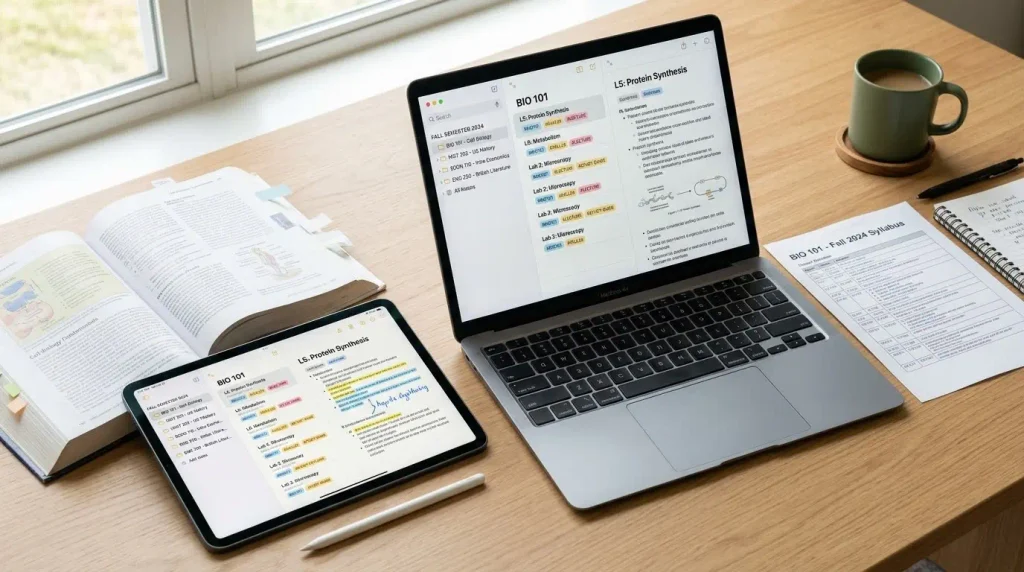
Folders and Subfolders: Use these for clear academic divisions. Create a main folder for the current term (Fall 2026), and create subfolders for each course code (BIO 101, ENG 102).
Tags: Tags work across folders. Typing an inline hashtag like #midterm, #essay-source, or #lab allows notes from different classes to share common attributes.
Smart Folders: These dynamic folders automatically aggregate notes based on rules you choose. You can create a Smart Folder that automatically collects every note containing the tag #finals created within the last 30 days.
Organization Best Practices
Pin your syllabus: Keep the syllabus, instructor office hours, and grading policies pinned to the top of every course folder (Swipe right > Pin or Right-click > Pin Note).
Standardize titles: Use uniform naming conventions, such as Course - Week ## - Topic. This ensures that search queries and Spotlight lookups return the right note immediately.
Maintain an Inbox: Create a folder named _Inbox for quick thoughts, random links, and whiteboard captures. Spend a few minutes each weekend organizing these into their proper course folders.
9. Apple Notes on Mac, iPhone, and iPad
A central reason why Apple Notes is often considered the best note taking app for Apple users is how smoothly it operates across Apple devices.
Mac: The Research and Writing Command Center
On a MacBook or desktop Mac, Notes provides a focused, high-speed typing environment:
Side-by-Side Research: Snap Notes to one half of your screen and an academic journal or textbook to the other.
Quick Note Hot Corners: Moving your cursor to the bottom-right corner opens a floating note, letting you save excerpts from Safari without losing your place. Safari automatically links back to the original source URL.
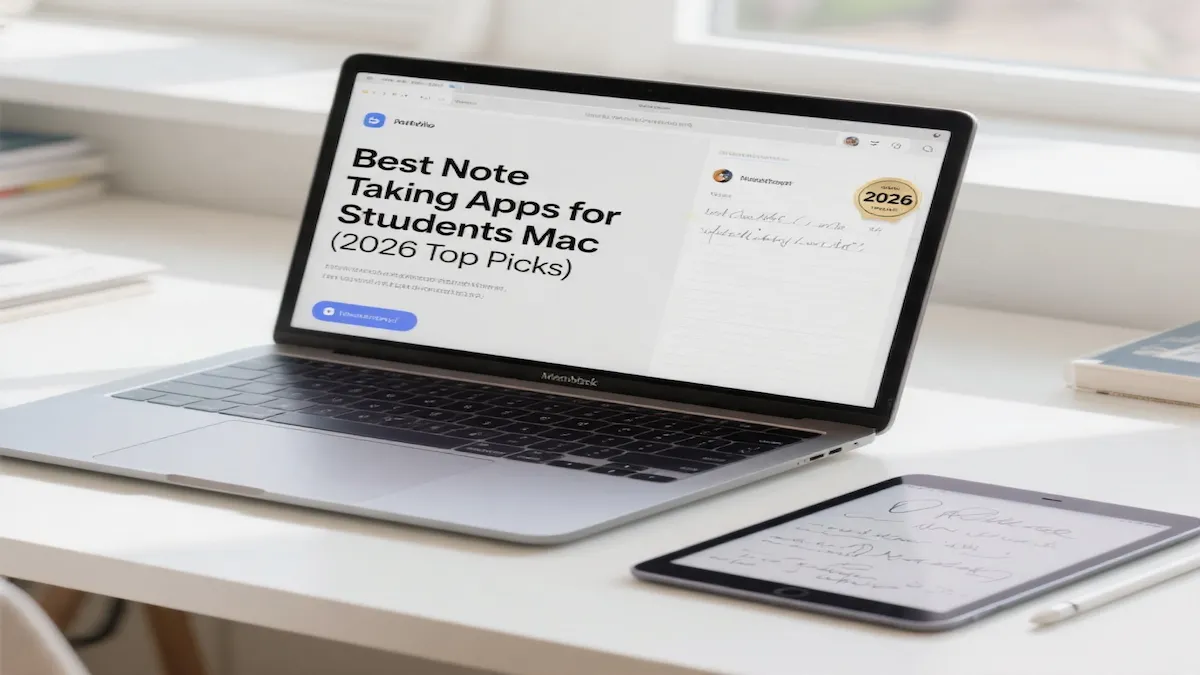
If you are exploring different software options for your laptop, review our complete breakdown of the Best Note-Taking Apps for Students on Mac to compare desktop alternatives.
iPad: The Ultimate Lecture Tablet
The iPad offers the most versatile environment for Apple Notes for students, balancing digital power with the benefits of handwriting:
Apple Pencil Precision: Annotate slides, sketch technical diagrams, and write out formulas inline with typed text.
Smart Script & Scribble: Automatically refine messy handwriting during quick lectures, or convert handwriting directly into typed text.
Lock Screen Access: Tapping your Apple Pencil on a locked iPad opens a new note instantly, making it ideal for quick lab reminders.
iPhone: Capture and Review on the Go
While your phone is rarely your main lecture-taking tool, it plays an important role:
Review collapsible active-recall questions while walking across campus or waiting for class.
Use the camera to scan physical worksheets or library excerpts directly into notes.
Dictate quick study thoughts using the Action Button or lock-screen shortcuts.
The iCloud Synchronization Experience
iCloud synchronization is automatic and fast under standard Wi-Fi connections. A diagram scanned with your iPhone appears on your MacBook within moments.
However, be mindful of storage limits: high-resolution PDF attachments, textbook chapters, and extensive audio recordings will gradually consume your free 5GB iCloud allowance.
10. Pros and Cons
To keep this Apple Notes review for students balanced, here is an objective summary of where the app excels and where it has limitations:
Pros
Completely Free: Included on all Apple devices with zero subscriptions, paywalls, or third-party ads.
Native Operating Speed: Opens instantly with no input lag and minimal battery consumption.
Deep Ecosystem Integration: Seamless support for Quick Notes, Continuity Camera, Apple Pencil, and iCloud sync.
Modern Study Tools: Built-in audio recording, live transcription, Smart Script, and Math Notes.
Comprehensive Search: OCR indexes typed text, handwriting, and words inside images and scanned PDFs.
Collapsible Headings: Simplifies long documents and makes active recall straightforward.
Cons
No Native Windows or Android Apps: The web version at iCloud.com offers limited features and a slower interface, making it inconvenient for students with Windows desktops.
Basic PDF Annotation: Lacks advanced PDF controls like page reordering, multi-page split viewing, and detailed outline indexing.
Limited Export Options: Exporting is largely limited to PDF and plain text, making it harder to move large libraries to other platforms later.
Rigid Canvas Structure: Does not feature the infinite whiteboard canvas found in specialized visual brainstorming apps.
Simple Tables: Tables handle basic information well, but do not support advanced spreadsheet calculations or database filtering.
11. Pricing and Value for Students
From a pure value perspective, Apple Notes for students is difficult to beat.
The application requires no initial purchase, no monthly fee, and no student verification checks. While many competing apps charge between $8 and $15 per month for premium features, Apple Notes includes its entire toolset—including transcription and intelligence tools—at zero cost.
The only potential expense is iCloud storage. Every Apple account includes 5GB of free storage. While standard text notes take up minimal space, storing dozens of heavy slide decks and audio files can fill that quota.
Upgrading storage through iCloud+ remains affordable:
50 GB: $0.99 / month
200 GB: $2.99 / month
2 TB: $9.99 / month
Even if you opt for the 50GB tier for your academic backups, $12 per year is significantly less expensive than dedicated software subscriptions. Because Apple does not run an affiliate network or premium upgrade tier for Notes, the app exists solely to provide reliable utility across Apple hardware.
12. Is Apple Notes Worth It for Students?
So, is Apple Notes good for students heading into an intensive academic year?
The answer is an emphatic yes. In previous years, choosing Apple Notes for college students often meant sacrificing essential features like internal linking, reliable PDF handling, and flexible formatting. Apple has steadily addressed those limitations. Today, it provides a clean, dependable platform that saves money, preserves battery life, and removes the temptation to spend hours tinkering with productivity setups instead of studying.
Unless your coursework demands complex relational databases, specialized code compiling, or regular use of a Windows PC, Apple Notes provides more than enough capability to support your academic degree.
13. Who Should Use It?
Apple Notes for students is a great fit for:
Undergraduate and High School Students with Apple Devices: If you carry an iPhone, MacBook, or iPad, the built-in integration provides a smooth experience.
Humanities and Social Science Majors: Ideal for students drafting essays, reviewing readings, organizing case studies, and recording lecture discussions.
STEM Students Needing Quick Calculations: Math Notes makes the app surprisingly useful for physics, algebra, economics, and introductory engineering coursework.
Students Who Value Simplicity: Anyone who finds complex productivity software overwhelming and prefers a clean, fast surface for everyday learning.
14. Who Should Consider Another App?
Apple Notes may not be the ideal choice if you fall into these categories:
Cross-Platform Users: If you take notes on an iPad in class but study on a Windows desktop at home, the web-based iCloud client will feel restrictive.
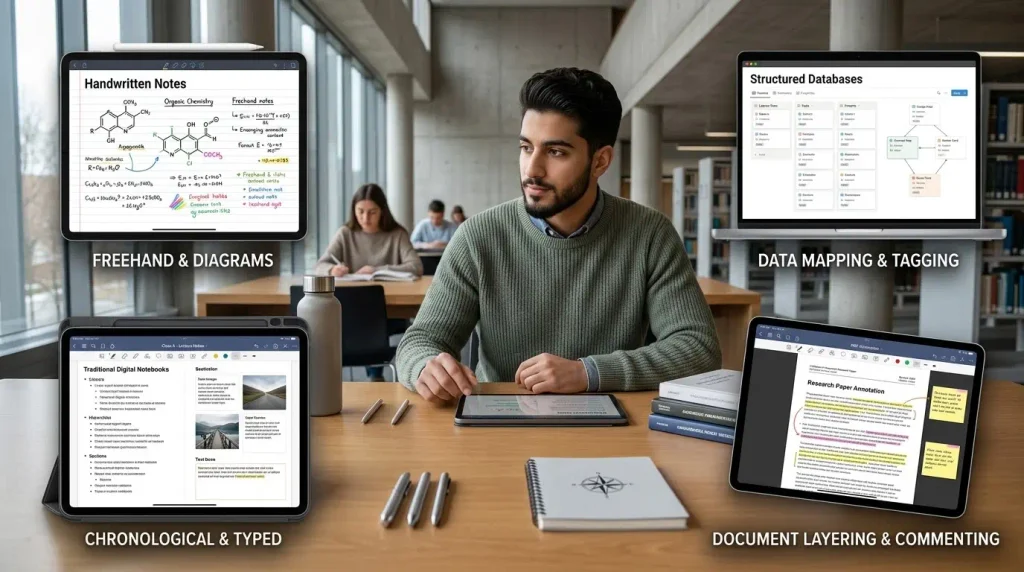
Heavy PDF and Digital Planner Users: If your study routine involves annotating dense 500-page slide packets, drawing complex medical diagrams, or using customized digital planner templates, dedicated apps like Goodnotes or Notability offer deeper controls.
Relational Database Builders: If your workflow depends on tracking assignments through linked databases, kanban boards, and public wikis, Notion remains the better tool.
15. Apple Notes vs Notion, OneNote, and Goodnotes
To provide clear context in this Apple Notes review for students, here is how Apple’s native app compares with its main competitors:
┌─────────────────────────────────────────────────────────────────────────────────┐
│                    STUDENT NOTE APPS COMPARISON MATRIX                         │
├──────────────┬─────────────┬─────────────┬─────────────┬────────────────────────┤
│ Feature      │ Apple Notes │ Notion      │ OneNote     │ Goodnotes              │
├──────────────┼─────────────┼─────────────┼─────────────┼────────────────────────┤
│ Price        │ Free        │ Free / Paid │ Free / 365  │ Freemium / Paid        │
│ Ecosystem    │ Apple Only  │ Web/All OS  │ Windows/All │ Apple / Android / Win  │
│ Launch Speed │ Instant     │ Moderate    │ Moderate    │ Fast                   │
│ Handwriting  │ Excellent   │ Basic / N/A │ Very Good   │ Industry Best          │
│ Organization │ Folders/Tags│ Databases   │ Notebooks   │ Digital Notebooks      │
│ Audio Sync   │ Audio + Text│ No Native   │ Audio Only  │ Audio to Stroke Sync   │
│ PDF Tools    │ Basic       │ Embed Only  │ Good        │ Advanced Markup        │
│ Math Solver  │ Native Auto │ LaTeX Only  │ Good        │ Manual / Math Tool     │
└──────────────┴─────────────┴─────────────┴─────────────┴────────────────────────┘
Apple Notes vs Notion
The choice between Apple Notes vs Notion comes down to speed versus modular complexity. Notion functions as a relational database and collaborative workspace, making it ideal for tracking semester schedules, organizing group projects, and building structured wikis.
However, Notion is slower to navigate, requires an internet connection for full reliability, lacks native Apple Pencil handwriting tools, and often invites procrastination. Apple Notes is much faster for in-class capture and focused reviewing.
Apple Notes vs Microsoft OneNote
Comparing Apple Notes vs OneNote highlights different platform priorities. OneNote features an open-ended canvas that allows you to click and type anywhere. It is completely cross-platform, making it a common choice for students working between an iPad and a Windows computer.
On macOS, however, OneNote can feel clunky, sync conflicts occasionally occur, and its interface resembles an office suite rather than a clean study notebook.
Apple Notes vs Goodnotes
Goodnotes is designed to replicate traditional spiral notebooks and binder dividers. If you prefer your iPad to behave like physical paper with set margins, specialized paper grids, and detailed PDF annotation, Goodnotes remains an excellent choice.
Apple Notes takes a hybrid approach, combining typed text, images, and handwriting into one continuous document.
To explore how these different styles fit your learning preferences, take a look at our foundational guide to Digital Note-Taking.
16. Practical Student Use Cases
To show how this functions during a normal semester, here are four practical ways to apply an Apple Notes student workflow:
Use Case 1: The STEM Problem Set
The Context: Working through weekly problem sets in an introductory calculus or physics course.
The Method: Open a note named MATH 141 - Problem Set 3 on your iPad. Write out formulas using your Apple Pencil. Math Notes evaluates your arithmetic and updates calculations automatically.
The Result: If you discover a mistake in your early calculations, adjust the initial number; every downstream result recalculates without requiring you to erase your work.
Use Case 2: The Seminar Discussion
The Context: Participating in a literature, philosophy, or social science discussion.
The Method: Open your MacBook and start the built-in audio recorder. Type brief summaries of the discussion while the app captures the conversation.
The Result: When drafting your term paper weeks later, search for a classmate’s comment; the transcript guides you straight to that moment in the audio recording.
Use Case 3: The Collaborative Group Project
The Context: Preparing a team presentation for a marketing or business class.
The Method: Create a shared folder named MKTG 201 Project and share the iCloud link with your project partners.
The Result: Everyone can drop in research sources, add slide ideas, and check off assigned responsibilities without managing separate permissions or third-party accounts.
Use Case 4: The Research Paper Archive
The Context: Collecting research sources for a multi-week term paper.
The Method: Use Quick Notes on your Mac to capture quotes from online journals; the note automatically links back to the original Safari webpage. Use your iPhone to scan physical pages from library books.
The Result: Link source summaries directly into your outline using >>, keeping your citations and references organized in one place.
17. Final Takeaway
College and university semesters pass quickly. When assignments, exams, and projects accumulate, your study tools should lighten your workload, not add extra complexity.
Apple Notes does not attempt to be an all-in-one productivity suite, and that simplicity is precisely why Apple Notes for students works so effectively. By focusing on rapid startup times, dependable organization, effortless cross-device sync, and practical tools like Math Notes and live audio transcription, it delivers what students need without extra costs or configuration headaches.
If you already own an iPhone, iPad, or Mac, hold off on paid software subscriptions for a couple of weeks. Open Apple Notes, set up a folder for each of your courses, and test this workflow in your next few classes. You may find that the best note taking app for Apple users was already sitting on your home screen from the start.